




Hi, you're probably here because you've been sent an account invite.
Here's how to accept the invitation and manage the invitee's account:
- You've received an email from Smilii with the subject, "[Name] has invited you to their Smilii account"
- In the email body, click "Accept invitation"
- Common problem: your browser may tell you: "track.smilii.net doesn’t support a secure connection with HTTPS." Click Continue to site or Continue anyways
- You'll be redirected to the invitation acceptance page where you can either login if you have an account or register to accept the invite. It'll look like this:
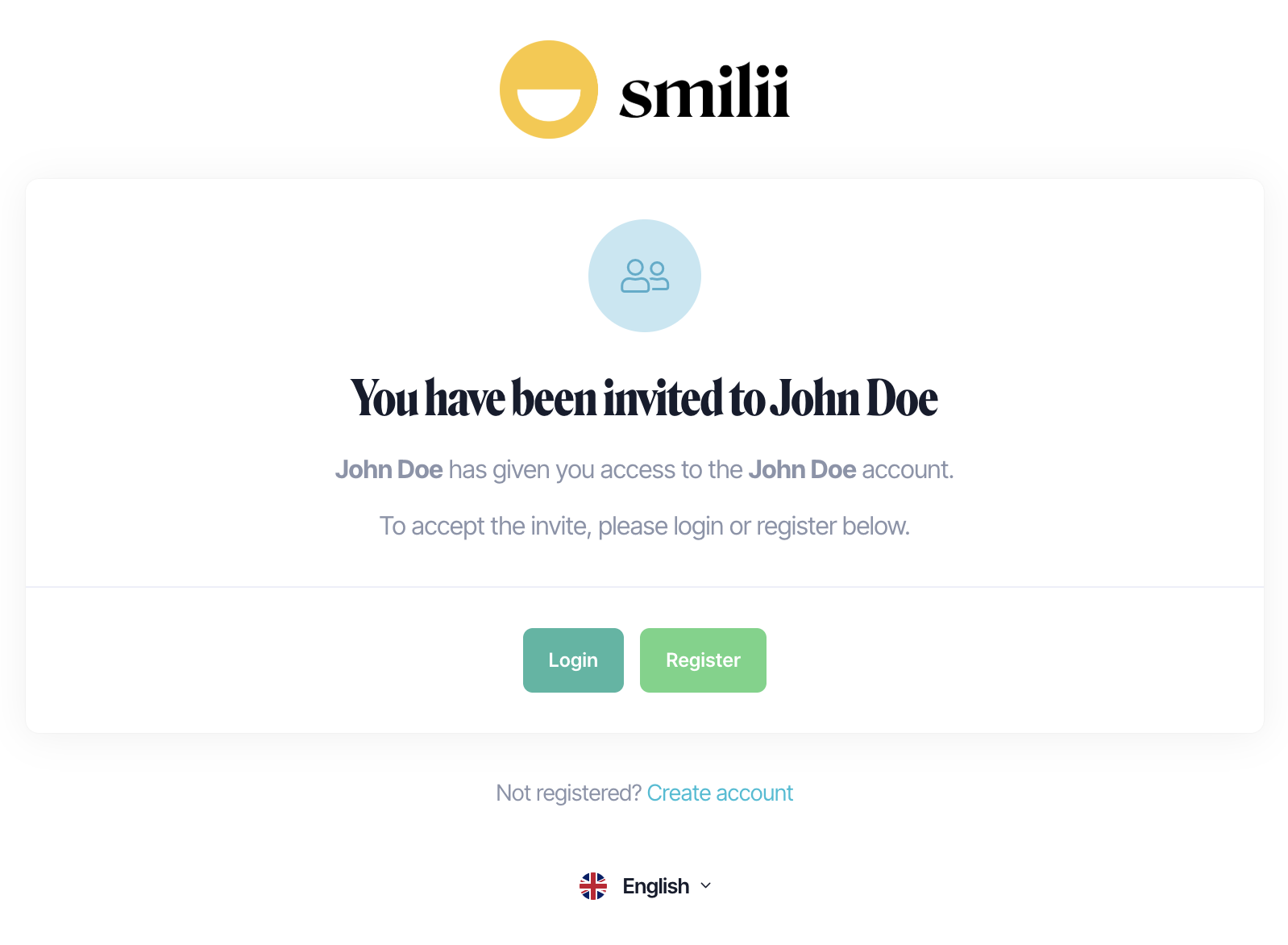
- Common problem: Captcha may not appear and throw an error after logging in or registering. If you experience this, go to https://my.smilii.net and login or register from there with the email that was invited
- After logging in/registering, if auto-accept didn't work, you'll see another invite confirmation page
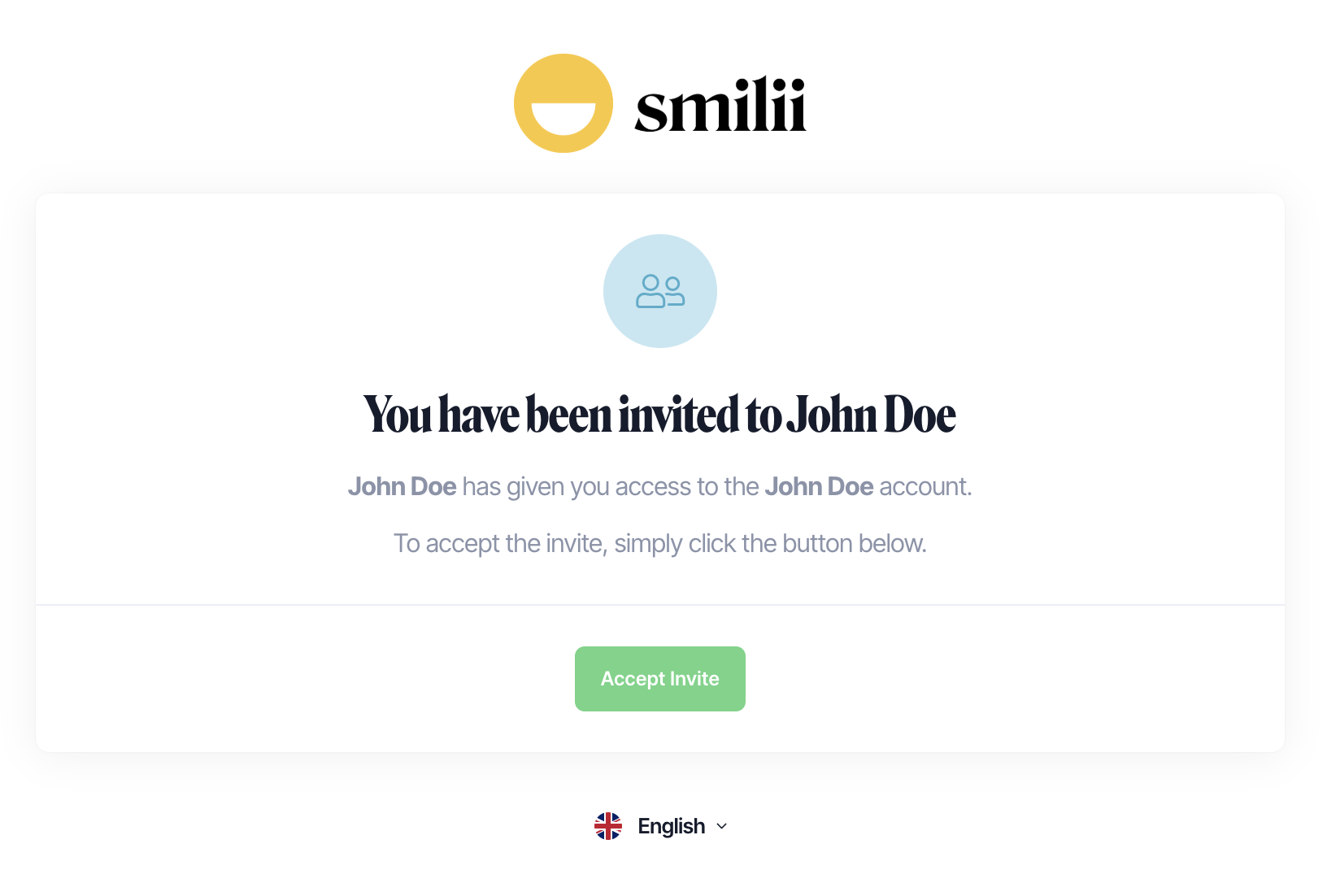
- Click Accept Invite
- You are now in the invitee's account — if you cannot access a service, page, or product you need, ask the invitee to change your permissions.
How to switch accounts
To switch an account to your available accounts, follow these steps:
- If you already have access to more than just your own account, upon signing into My Smilii, you'll be prompted to choose an account to login and manage
- If you're already signed into your own account or an account you already manage and want to switch to a different one:
- Click on your profile image from the top right > then Switch Account
- Choose the account you want to switch to by clicking the Switch Account button next to the name
- You are now managing that account. You can follow from step 2.1 above to switch back to your own or a different account
That's all! If you have any questions, please open a support ticket. Our Happiness Engineers are happy to help.